Ask about real records
Ask an assistant to summarize accounts, transactions, spending, recurring services, or goals that are available to your Savi account. Give it a time period or category when you want a focused answer.
Savi MCP
Savi MCP connects your financial data to the AI tools you already use, helping turn everyday money questions into clear visual answers and practical next steps.
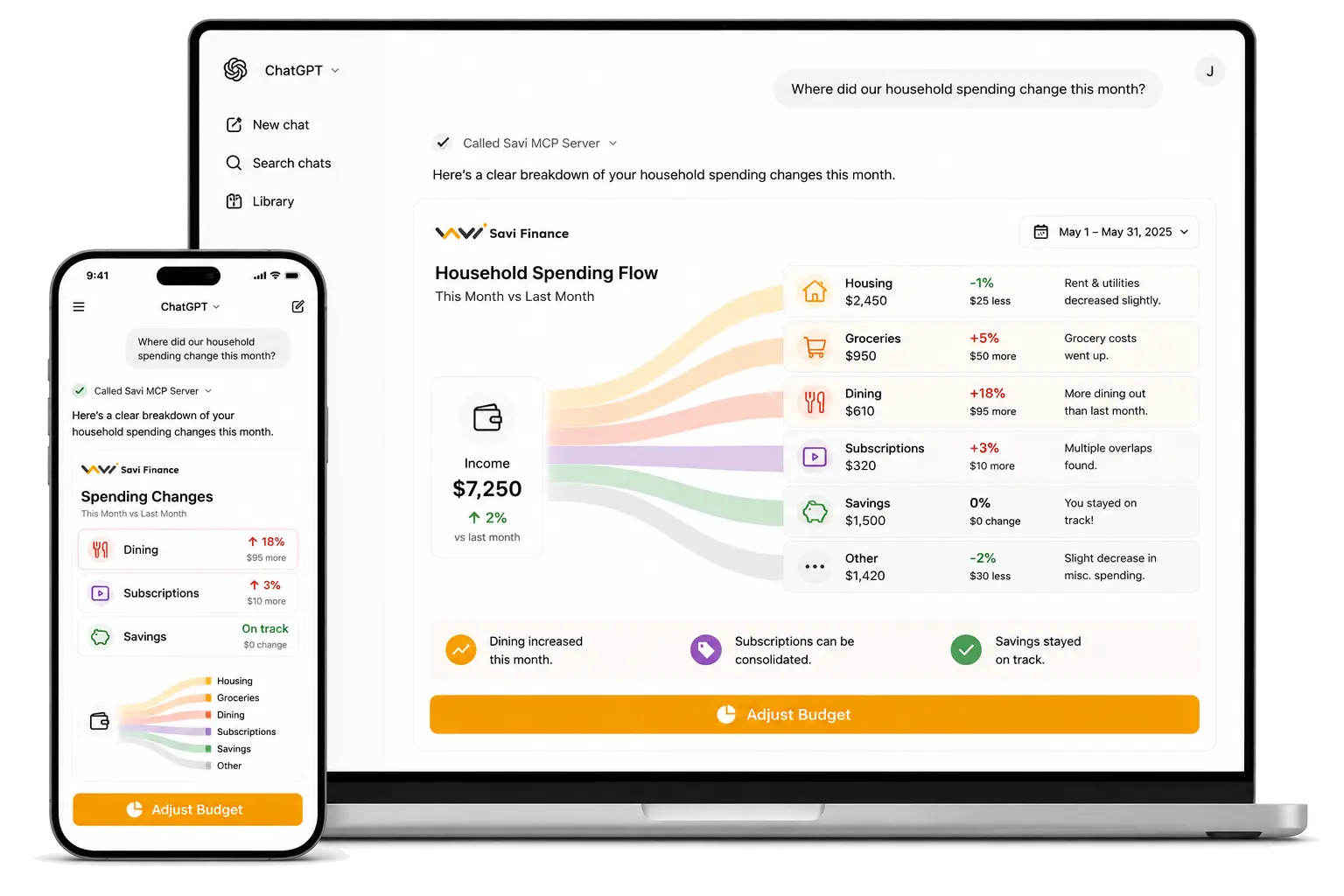
Ask where spending changed, understand what drove the change, and get recommendations directly inside the conversation.
Connected capabilities
Savi MCP exposes financial tools to an authorized AI client. The assistant can use the relevant account context and supported actions to answer a question or help update a record.
Review accounts, balances, transactions, alerts, categories, and spending analytics in response to a money question.
Work with savings goals, financial plans, and income or expense projections as your priorities change.
Create and manage categories, tags, recurring rules, and saved filters to make financial records easier to review.
Manage shared accounts and work with supported invoice and time-tracking records from the same assistant connection.
Savi uses OAuth sign-in for MCP clients. You can approve read-only access, and a client that asks to change data needs a separate opt-in for write access. Check the requested access on Savi's consent screen before approving it.
Read the authorization guideHow Savi MCP works
Savi MCP brings the right financial context into your AI-assisted workflow, helping you move from raw data to clear explanations.
Step 1
Start with an everyday question about your household spending, savings, or subscriptions.
Step 2
Savi MCP securely brings the relevant financial context into the conversation.
Step 3
Your AI assistant uses that context to identify changes, patterns, and useful insights.
Step 4
Receive an understandable explanation and a practical action you can take next.
Illustrative example
User asks
“Which subscriptions should I review before next month?”
$220
Monthly subscriptions
7
Recurring services
2
Possible overlaps
Savi response
Review streaming, storage, and productivity services first. Two tools appear to serve similar use cases, and canceling one could reduce recurring spend before the next billing cycle.
What the connection includes
MCP gives a compatible assistant a structured way to request information from Savi. The assistant does not receive a separate copy of your bank login; it uses the access you approve for your Savi account.
Ask an assistant to summarize accounts, transactions, spending, recurring services, or goals that are available to your Savi account. Give it a time period or category when you want a focused answer.
Sign in through Savi and review the requested access before approving it. You can untick “Allow changes” to connect with read-only access. The MCP guide explains the consent screen and the first read-only account check.
An assistant interprets the records returned by Savi. Check important totals against the underlying transactions, and remember that a missing account or delayed bank feed can affect what the assistant sees.
A useful request says what to compare and what kind of explanation you want. For example, ask which spending categories changed between two months, request the transactions behind the largest change, or ask how a savings goal is progressing. If the first answer is too broad, narrow the date range or ask the assistant to show the transactions that support its summary.
MCP is the connection protocol; it does not make an assistant a financial adviser. Use its summaries to explore your own records, then verify calculations and decide what action fits your circumstances.
No. An MCP client uses Savi’s OAuth sign-in flow. You approve access in your browser; you do not copy an API token into the assistant.
Yes. On the consent screen, untick “Allow changes” before you approve the connection. The developer guide shows how to verify the connection with read-only calls.
The MCP connection guide covers client setup and a first account read. The authentication guide explains sign-in and access approval.
Built for financial clarity
Connect Savi to AI-powered conversations and turn financial context into answers that are easier to understand, act on, and trust.
Claude and ChatGPT open example prompts; connect Savi in those clients first. Cursor opens a prefilled Savi MCP install prompt. Muse support is coming soon.
Depending on the access you grant, an assistant can read accounts, transactions, goals, and analytics, and use tools to create or update supported financial records. The developer guide lists each available tool and its required scope.
Some MCP tools can create, update, or delete records. During authorization, you can grant read-only access; write access requires a separate opt-in when the client requests it.
Claude and ChatGPT open an example question. Cursor opens a prefilled Savi MCP install prompt. Sign in through Savi to authorize access.